
1. Installation
- On the homepage, enter your store domain (for example
store-name.myshopify.com) and choose Open ZENBULK EDITOR. - Shopify admin opens and lists the permissions the app requests: read and write access to products and inventory, and read access to locations. The app does not request access to customers or orders.
- Approve the installation. ZENBULK EDITOR opens inside Shopify admin and appears under Apps in the admin sidebar.
- Choose a plan on the Plan & usage page if the app asks you to. The Free plan lets you start immediately.
ZENBULK EDITOR always runs inside Shopify admin. Opening the website directly shows this public site — your store data is only available in the embedded app after you sign in to Shopify.
2. Selecting products
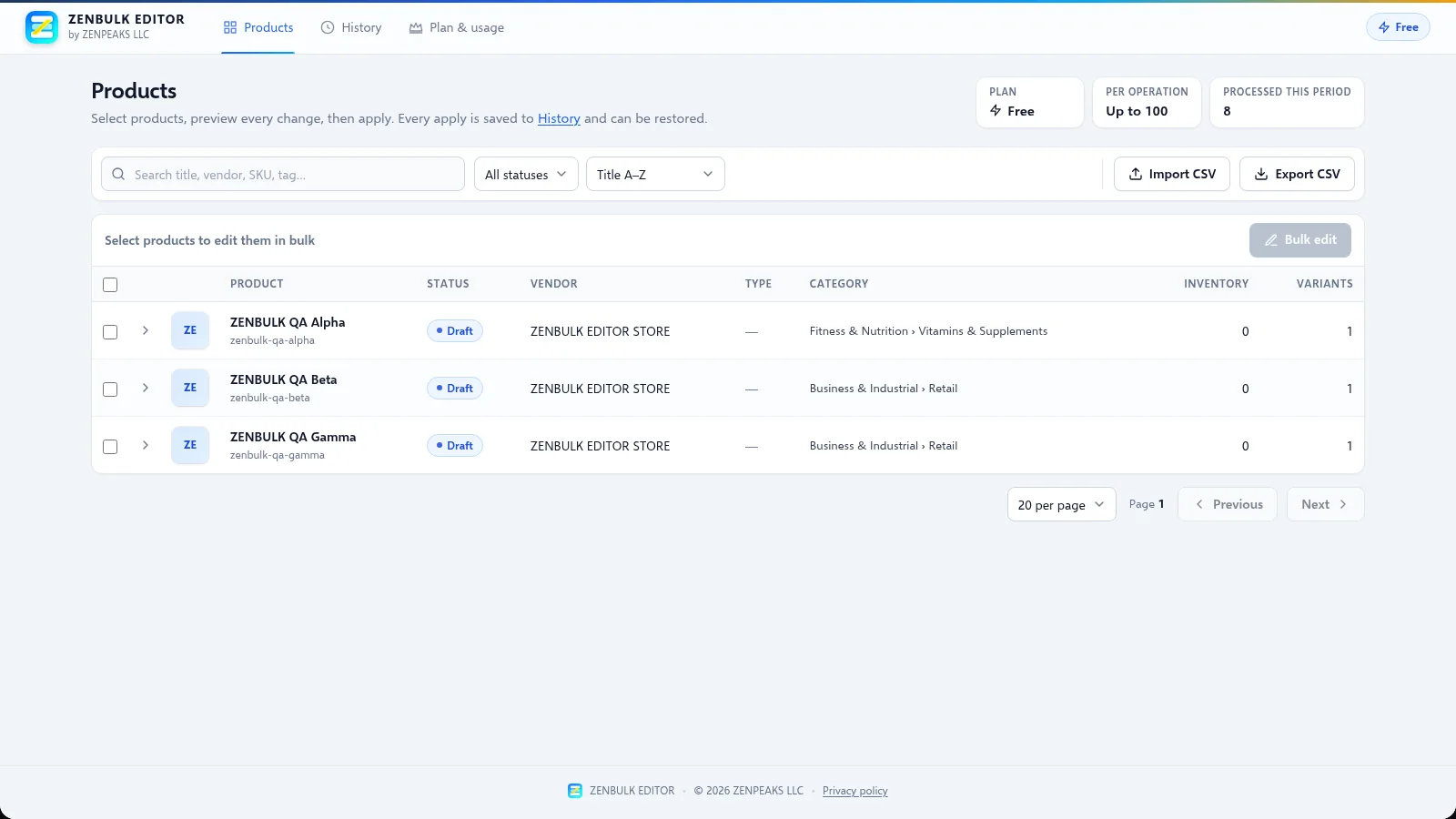
The Products page lists your catalog with status, vendor, type, category, inventory and variant count.
- Search by title, vendor, SKU or tag, filter by status and choose a sort order.
- Tick products individually, or use the header checkbox to select every product on the page.
- Expand a product with the arrow to see its variants and tick individual variants.
- Use the page-size selector and Previous / Next to move through large catalogs.
3. Bulk editing
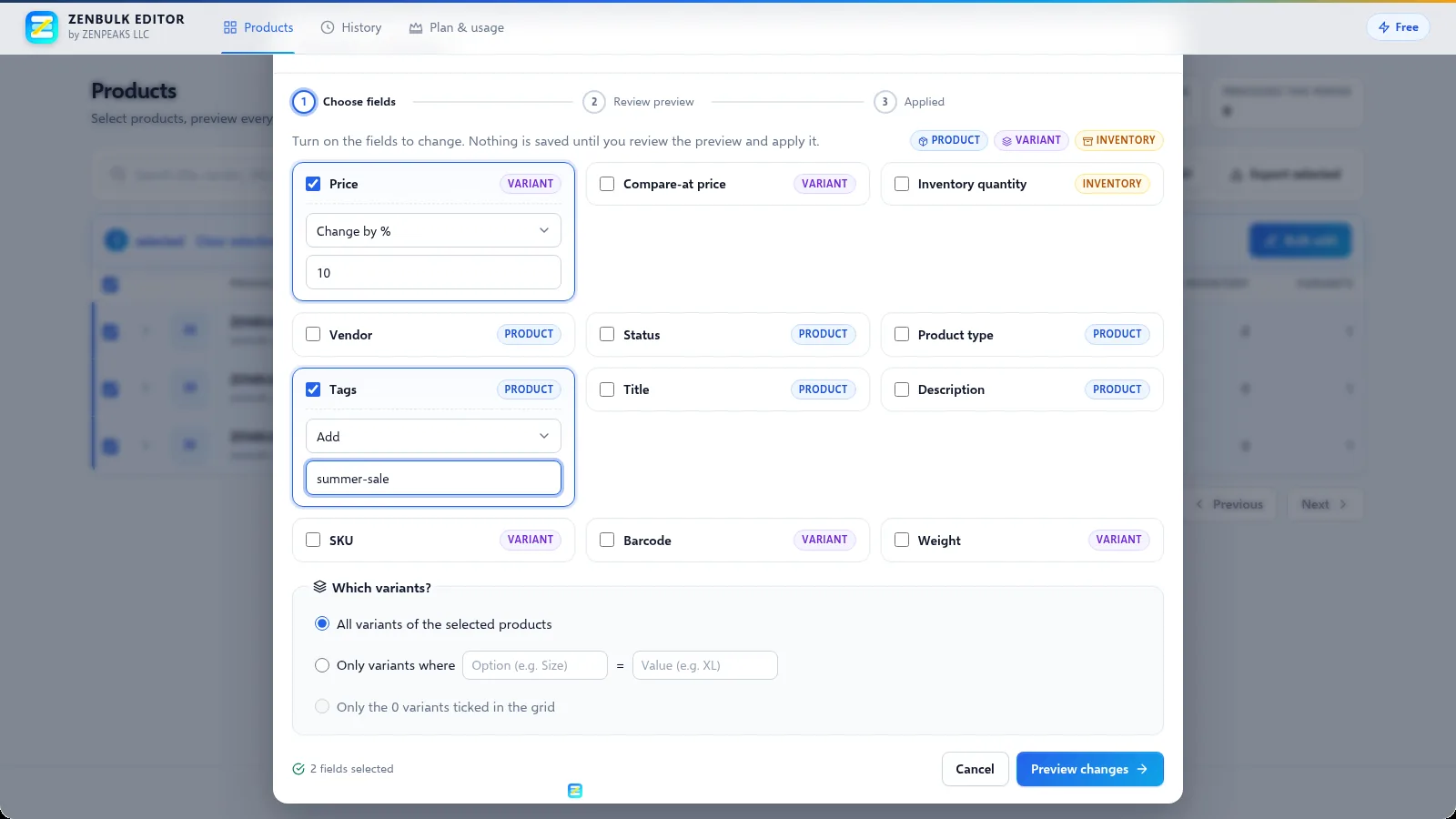
With products selected, click Bulk edit. Turn on each field you want to change and choose how to change it. Each field is labelled with its level — product, variant or inventory — so you always know what it affects.
| Field | Level | Options |
|---|---|---|
| Title | Product | Set to, add prefix, add suffix, find & replace |
| Description | Product | Append, prepend, replace with (HTML allowed) |
| Vendor | Product | Set to |
| Product type | Product | Set to |
| Status | Product | Set to Active, Draft or Archived |
| Tags | Product | Add, remove, replace all with |
| Price | Variant | Change by %, change by amount, set to, multiply by |
| Compare-at price | Variant | Set to, price × factor, remove |
| SKU | Variant | Set to, clear |
| Barcode | Variant | Set to, clear |
| Weight | Variant | Set to (with unit) |
| Inventory quantity | Inventory | Set to, adjust by (+/−) at a chosen location |
4. Variants & inventory
Variant-level changes (price, compare-at price, SKU, barcode, weight) can target:
- all variants of the selected products,
- only variants where an option matches a value (for example Size = XL), or
- only the variants you ticked in the product grid.
Inventory quantity changes apply to one location at a time: choose the location, then set an exact quantity or adjust it by a positive or negative number of units.
5. Preview & apply
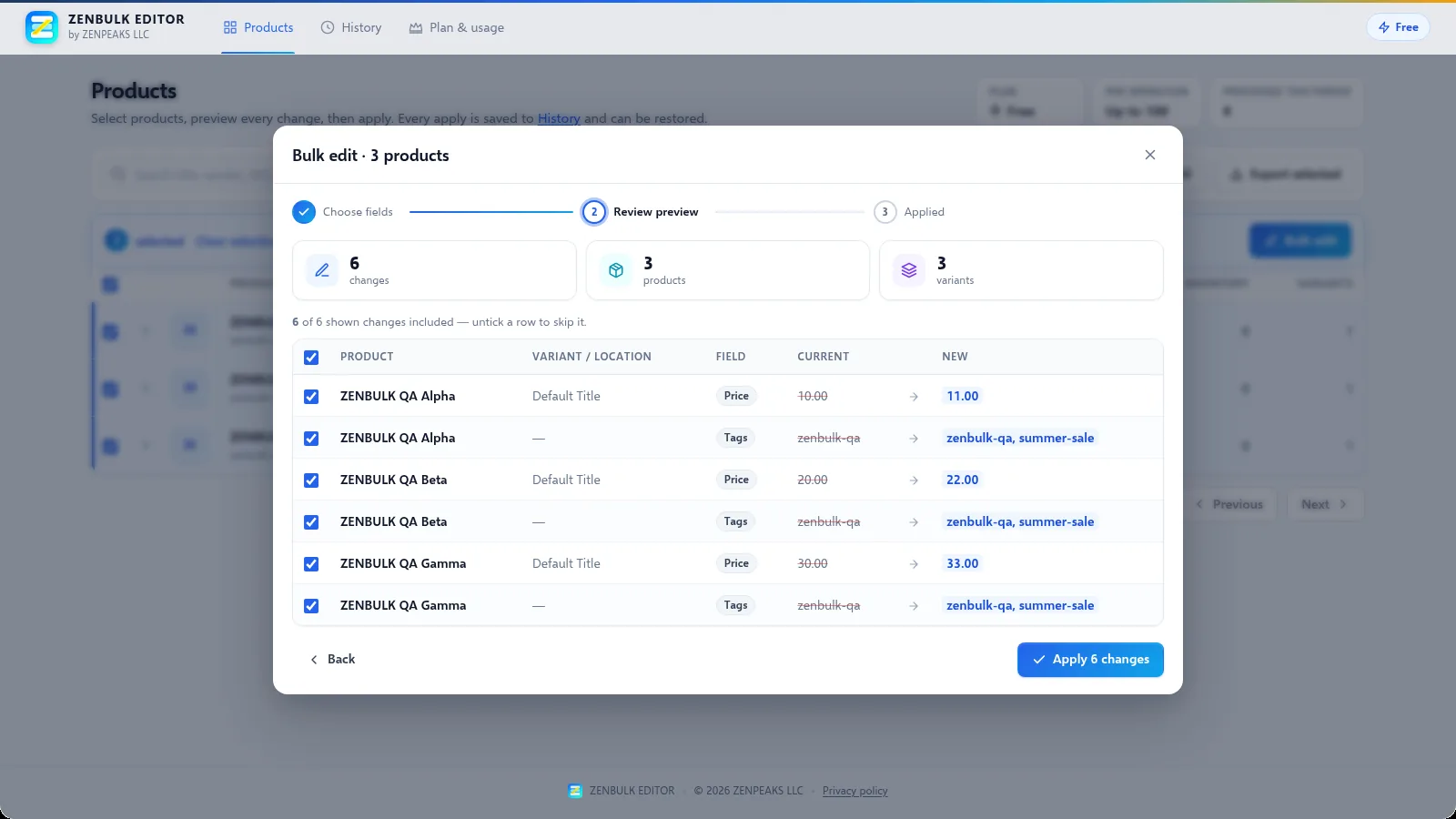
Click Preview changes. The preview lists every change with its current and new value. Untick any row you want to skip, then click Apply. Nothing is written to your store before you apply.
- Previews are signed by the server, so the changes you approved are exactly the changes that are applied.
- Large operations run in the background with a progress indicator; you can keep the page open to follow progress.
- When the apply finishes you see how many changes succeeded and, if any failed, the reason for each failure.
6. CSV export & import
Export
Click Export CSV to download the products that match your current search and filter, or Export selected when products are ticked. One export can contain up to 5,000 products.
Import
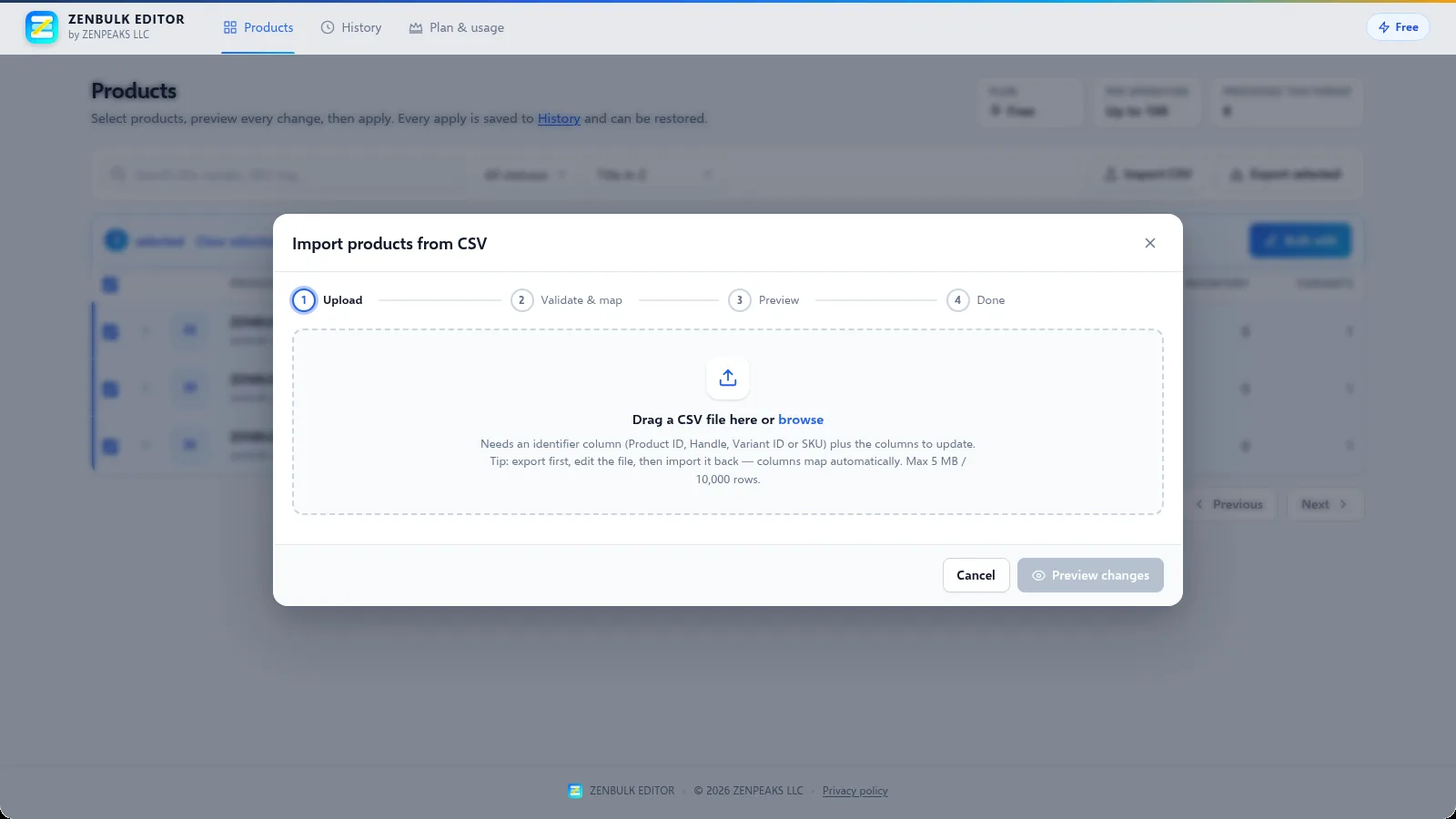
- Click Import CSV and upload a file (up to 5 MB and 10,000 rows).
- Include at least one identifier column — Product ID, Handle, Variant ID or SKU — plus the columns to update: title, vendor, product type, status, tags, price, compare-at price, inventory quantity and location.
- Columns are mapped automatically (including common Shopify export names); adjust the mapping if needed.
- Invalid rows are listed with the reason. Review the preview of real changes, confirm, and apply.
Tip: export first, edit the file in your spreadsheet tool and import it back — the columns then map automatically.
7. History & restore
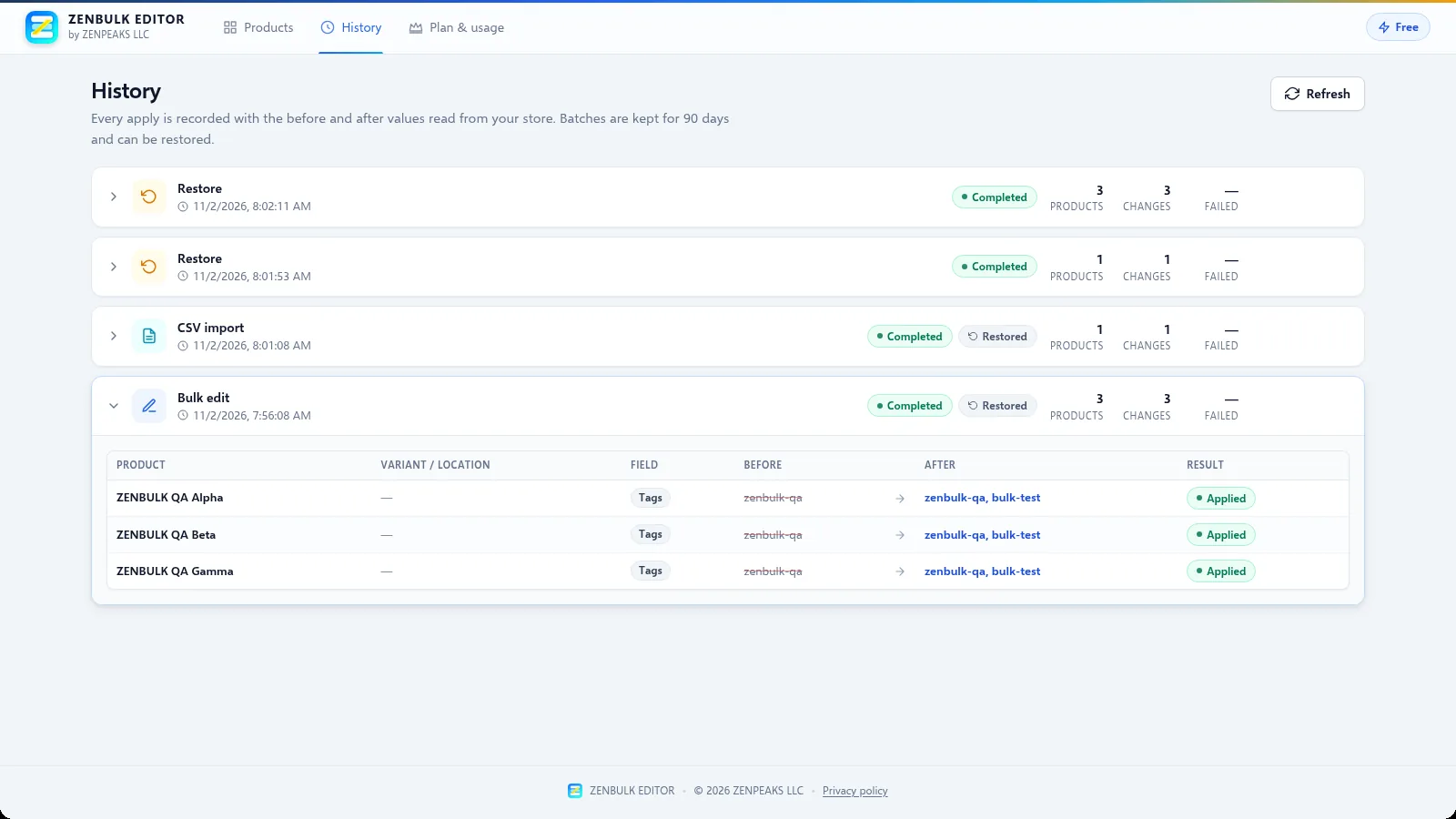
Every apply — bulk edit, CSV import, AI change or restore — is recorded on the History page with the before and after values read from your store. History is kept for 90 days.
- Expand a batch to see each product, variant or location, the field, its before and after values and the result.
- Click Restore on a batch and confirm to write the previous values back. The restore itself is recorded as a new batch.
8. Plans & limits
- Free: up to 100 products per operation.
- Pro Monthly ($29.99 every 30 days) and Pro Annual ($99.99 per year): no per-operation product limit.
Plans are billed through Shopify. Open Plan & usage in the app to see your current plan and usage and to choose or change a plan. See pricing for details.
9. AI features (optional)
ZENBULK EDITOR can generate product titles, descriptions, SEO text and tags, and suggest categories from Shopify’s product taxonomy. These features require an AI provider to be configured for the app. When no provider is configured, the AI buttons are hidden and no product data is sent to any AI service.
When AI is available, proposals are always shown for review first and are only written to your store when you apply them.
10. Uninstalling
Uninstall from Settings → Apps and sales channels in Shopify admin. Access tokens are cleared immediately, and shop data is deleted when Shopify sends its shop data deletion request, as described in the Privacy Policy.
Need help? Email support@zenpeaks.shop.